


PDF Reader - Mobile Viewer
2.953.00 Reviews
App Specs
- Version
- 1.0
- Updated On
- License
- Free
- Downloads
- 100,000+
- Developer
- Caller app studio
- Categories
- Tools
- Platform
- Android
Screenshots
 Analysis by AppCompare
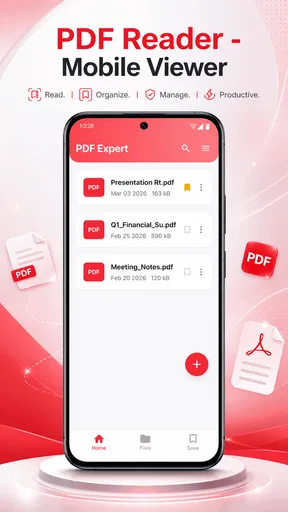
Reading a PDF on a phone sounds simple until the document arrives at the wrong moment: in a message, during a commute, beside a printer, or just before a meeting. PDF Reader - Mobile Viewer is built for that everyday problem. I found its appeal less in ambitious extras and more in giving PDF files a dedicated place on a mobile device, rather than forcing me to handle them through whichever app happens to open an attachment.
It is a free tools app from Caller app studio, with a Everyone age rating and a current version of 1.0. The basic promise is clear: open, read, and manage PDF files from a phone. That makes it an option for people who want a straightforward document viewer without paying for a larger office suite. My overall impression is positive for light reading, but I would not treat it as a complete document-work platform.
How PDF Reader - Mobile Viewer fits into connected mobile use
When I use a PDF reader as part of a connected mobile routine, I think beyond simply opening a file: I consider where it came from, how I’ll find it again, and what I need to do after reading. Keeping those handoffs deliberate can make a quick document check less dependent on one message thread or online service. It also helps clarify when a focused viewer is enough and when the next step calls for another tool.
What happens when a PDF arrives through the internet
The most useful way to judge this app is to separate the document source from the reading experience. A PDF may come from email, a chat, cloud storage, a browser download, or a work portal. In each case, the connection is involved before the file reaches the viewer. PDF Reader - Mobile Viewer matters after that handoff: it gives the document a focused reading destination instead of leaving it buried inside the original service.
That distinction is important because the app should not be mistaken for a document-delivery service. If a file is still online, protected by a sign-in page, or waiting to download, the quality of your connection and the original service will affect the first step. Once the file is available to open on the device, the viewer becomes the more relevant part of the process. I found this mental model helpful because it prevents unrealistic expectations about what a PDF reader can solve.
A practical routine is to open the file from its source, check that the document has finished loading, and then use the viewer for the actual reading. If you are moving between several services, keeping the PDF reader as the consistent destination can reduce the small annoyance of switching between mail, messaging, browser, and storage apps. That is a modest benefit, but it is exactly the kind of benefit that matters when the document is needed quickly.
A realistic everyday scenario
Imagine receiving a travel confirmation or a school form in a chat while walking between appointments. The first challenge is connectivity: the message and attachment need to arrive. The second is usability: the file needs to open clearly enough to check names, dates, instructions, or a reference number. With this app, I would use the connected service only to retrieve the document, then move into the dedicated viewer to read it without the surrounding conversation competing for attention.
Worth Reading Before You Choose

EA SPORTS FC Mobile 26 Is a Bigger Football Game, but It Takes Time

Flipboard Shows What News Apps Must Do Beyond the Feed

Switching to Android Auto Means Rethinking Your Driving Routine

Google Calendar Makes a Crowded Week Easier to Manage

Ludo King Makes the Most of the Minutes Between Plans

Baby Panda World Brings Quick Play to Modern Phones, but Its Game Library Feels Busy
That workflow is especially sensible for short documents and reference material. Instead of scrolling through a long message thread to find the attachment again, I can treat the PDF as its own item. For a form that needs a quick visual check, a receipt that needs to be consulted at a counter, or a timetable that must be read in a hurry, this focused approach feels more natural than using a full office application.
The limitation is that a viewer does not automatically answer every document need. If I need to edit text, fill a complex form, add a signature, convert pages, or collaborate with another person, I would look for a specialized tool. PDF Reader - Mobile Viewer is most convincing when the task is reading and basic file handling, not when the PDF becomes part of a larger production workflow.
Reading in places where the connection changes
Mobile connectivity is rarely consistent. A file may open at home, take longer in a crowded station, or become difficult to retrieve in a building with weak reception. I would therefore avoid making the app the only part of a time-sensitive plan. Before leaving a reliable connection, I would open important documents and make sure they are available for the situation in which I expect to use them.
I am deliberately careful here: the app’s role is PDF viewing, and that does not by itself establish how every file behaves without a connection. The safest habit is to test the exact document you need before relying on it away from a network. This is more useful than assuming that every attachment, cloud item, or browser-based file will behave the same way.
That test can be quick. Open the document, move through the pages you expect to consult, and then consider whether the original source would still be reachable if the connection disappeared. For a critical boarding document, work instruction, or appointment form, this small check is worth doing. For casual reading, it may not matter as much.
Mobile handling: where the app feels most at home
The app makes the most sense on a phone because phones are where PDF clutter becomes frustrating. A desktop file manager offers more space and often more powerful document tools, but a mobile viewer can be easier when I only need to inspect a file immediately. The screen is still a compromise, especially with dense tables or pages designed for large paper, yet a dedicated viewer keeps the basic action—open and read—within reach.
I would recommend using portrait orientation for ordinary text and switching orientation when a document contains wide tables or landscape pages. This is not a special feature claim; it is simply a sensible way to work with PDFs on a small screen. Zooming too aggressively can make navigation tiring, so I prefer to first identify whether the content is meant to be read continuously or checked for one particular detail.
For longer reading sessions, the phone’s battery and screen comfort become more important than the app itself. A PDF viewer cannot make a small display feel like a monitor. I see this app as a strong companion for short consultations, quick reading, and occasional documents. If I planned to study a large manual for hours, I would choose a tablet, laptop, or a reading setup with a larger screen.
Managing the handoff between apps
One of the less obvious parts of mobile PDF use is the handoff. A file may be opened from an email client one time and from a browser the next. If the system offers a choice of apps, selecting a dedicated viewer can make the process more predictable. If the file opens somewhere else, I would use the device’s sharing or open-with controls to send it to PDF Reader - Mobile Viewer when that option is available.
This is also where expectations should stay realistic. The exact handoff depends on the phone, operating system, and source application. The viewer cannot control how every email app or cloud service presents a file. Still, having a dedicated PDF destination is useful because it gives me a consistent place to try when the default opening behavior is inconvenient.
For people who receive documents from several sources, I suggest adopting one simple rule: first locate the file, then decide where it should be read. That prevents repeated searching inside the original app and makes it easier to distinguish a connection problem from a viewing problem. If the attachment never finishes arriving, the reader is not the issue. If the file is present but difficult to inspect, the dedicated viewer becomes relevant.
Failure points and sensible recovery
Every mobile document workflow has failure points. A PDF may not appear because the download is incomplete, the source service may require another sign-in, or the file may be stored somewhere that is not immediately visible. When that happens, I would avoid repeatedly tapping the viewer and instead work backward: confirm the file exists, check whether the source finished transferring it, and try opening the document again from the file location.
This simple diagnosis saves time. If several unrelated PDFs open normally but one attachment does not, the problem may belong to that file or its transfer. If nothing opens, I would check the phone’s available storage, restart the source app, and retry the handoff. Those are ordinary recovery steps, but they are more effective than assuming that a PDF reader can repair every damaged or incomplete document.
Another useful habit is to keep a second route to an important file. For example, if a document is needed for an appointment, I would not rely solely on a message thread that may be difficult to reach later. I would locate the file in a stable place on the device or another trusted source before leaving. This is not a claim about a special backup function; it is a practical workflow choice that reduces dependence on one connection or one app.
What to do when a document behaves badly
PDFs are not all created in the same way. Some are mostly text, while others contain scanned pages, large images, forms, or unusual layouts. A document that feels slow or awkward may be demanding because of its structure rather than because the viewer is generally poor. I would test another ordinary PDF before judging the app from one troublesome file.
If the document is a scan, zooming can be particularly important because the page may be an image rather than selectable text. If it is a wide report, portrait viewing may create constant horizontal movement. If it is a form, reading may work while completing it may require a different application. These distinctions help set the right expectation: PDF Reader - Mobile Viewer is a reader first, so the best experience comes when the file is being consulted rather than transformed.
When a file is urgent, I would also avoid experimenting with multiple viewers at the last second. Open it earlier, identify whether the pages display correctly, and decide whether the app is sufficient for that document. This is one of the most valuable habits for mobile use because connectivity and file complexity can combine to create confusion when there is no time to troubleshoot.
Being careful with mobile data
PDF reading itself is not the only part that can consume connectivity. The source may need to download the entire document, especially when pages contain images. A sensible data-conscious routine is to retrieve large or important files while connected to a trusted network, then verify that they can be opened before heading out. I would be more relaxed with a short text document and more cautious with image-heavy material.
It also helps to avoid repeatedly reopening a file from an online source when the same document is already available on the device. Repeated retrieval can waste time and data, particularly in a weak signal area. The exact behavior depends on how the file was obtained and stored, so I would pay attention to whether I am opening a local copy or triggering another download through the original service.
For privacy-conscious users, the same workflow has a second advantage: it encourages deliberate handling. Instead of leaving a sensitive PDF open inside a public chat or browser tab, I can move it into a focused reading context and close the surrounding service afterward. That does not replace careful device security, but it reduces casual exposure while I check the document.
I would still avoid treating any reader as a secure vault. Sensitive tax, medical, financial, or identity documents deserve the same care as any other private file. Use a trusted device, avoid opening them on shared phones, and think about where the original attachment came from. The app provides a way to read the PDF; responsible storage and sharing remain the user’s job.
Who will appreciate this app
I think PDF Reader - Mobile Viewer suits people who regularly receive PDFs but do not need a full office suite. Students checking handouts, renters reviewing forms, travelers consulting confirmations, and workers reading short instructions are the clearest audience. It is also a reasonable choice for someone who wants a free, focused tool rather than an application filled with editing and collaboration controls they will never use.
The app has reached over one hundred thousand installs, while its average rating is three out of five from around two hundred fifty ratings. I read that combination as a sign to keep expectations measured. There is enough adoption to show that the basic use case is attracting people, but the rating suggests that the experience may not satisfy everyone equally. I would try it with ordinary documents before making it central to a demanding workflow.
The Everyone rating makes it approachable for general household use, but age suitability does not guarantee that every document is suitable for every reader. A PDF can contain adult or sensitive material regardless of the viewer’s rating. That distinction is worth remembering when sharing a phone with children or family members.
Who should choose another kind of tool
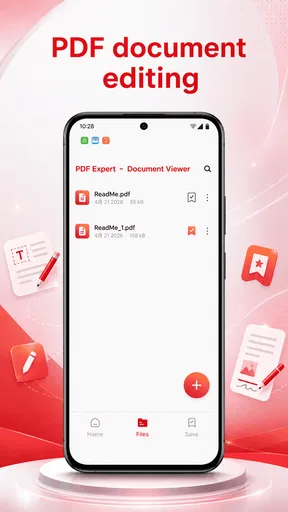
I would skip this app if my main goal is PDF editing. Someone who needs reliable annotations, signatures, text changes, form completion, scanning, conversion, or team review will probably be happier with a dedicated editor or a broader office suite. Those tools may be heavier and more demanding, but their extra controls serve a real purpose when reading is only one stage of the job.
I would also choose a larger-screen solution for intensive study or professional document review. A phone is convenient, yet dense pages, footnotes, diagrams, and side-by-side comparisons are easier on a tablet or computer. This viewer can still be useful as a quick companion, but it should not be judged as a replacement for a full desktop workflow.
Finally, users who depend on a highly polished, feature-rich ecosystem may find version 1.0 too basic for their habits. I prefer a focused reader when I want less clutter, but that same simplicity can feel limiting if I expect advanced controls, extensive organization, or integrated cloud work. The right choice depends on whether “read this now” is the task or merely the first step in a larger process.
How it compares with familiar alternatives
The usual alternatives fall into three groups: opening PDFs inside the browser, using a mail or cloud-storage app’s built-in viewer, or installing a full office and document suite. Browser viewing is convenient for a file encountered online, but it can leave the document tied to a tab or website. A built-in viewer is quick when the file comes from one particular service, though the experience may vary from source to source.
A dedicated reader sits between those options. It can be more focused than a browser and less overloaded than an office suite. That middle position is the strongest reason to consider PDF Reader - Mobile Viewer. I would use it when the task is to inspect, read, and manage PDFs without turning the phone into a miniature desktop workstation.
The trade-off is depth. A full suite is usually the better choice when documents need editing, collaboration, or export. A browser may be better when I only need to view a file once and do not want another app involved. This app wins when consistency and simplicity matter more than a long feature list. It is not automatically the best answer for every PDF-related task.
My practical setup for using it
My preferred routine would be simple. I would install the app, open a few different PDFs rather than judging it from one file, and test documents from the sources I use most. Then I would identify which files are truly needed away from a connection and prepare those before leaving a reliable network.
For a short document, I would read normally and close the source app afterward. For a long document, I would note the pages or sections I need before the connection becomes uncertain. For a form or file requiring changes, I would switch to an editor instead of forcing the reader to do a job it was not designed to handle. These small decisions make the experience smoother than simply expecting one app to cover every situation.
I would also keep the app updated when a newer release becomes available, especially because the current version is 1.0. Early versions can be perfectly adequate for a narrow task, but my confidence would grow by testing it with the actual files I depend on. The developer, Caller app studio, has positioned this as a tools app with a clear purpose; the best way to evaluate it is against that purpose rather than against an all-in-one document suite.
Connectivity verdict
PDF Reader - Mobile Viewer is a sensible free option for mobile PDF reading when I want a dedicated place to open and manage documents. Its value is clearest after a file has arrived: it helps separate reading from the email, chat, browser, or storage service that delivered the document. That separation can make quick checks feel calmer and more organized.
Connectivity still shapes the experience. Retrieval, sign-in, downloads, and cloud access belong to the surrounding workflow, so I would prepare important files early and test them before relying on them in a weak-signal location. I would not choose this app because I expect it to replace an editor, a cloud platform, or a desktop document system.
My recommendation is therefore specific: try PDF Reader - Mobile Viewer if your regular need is opening PDFs on a phone and reading them without unnecessary complexity. Keep another tool available for editing, signatures, collaboration, and demanding layouts. With that boundary in mind, this lightweight approach can be useful, particularly for people who want a free reader and are comfortable checking their documents before connectivity becomes uncertain.
At its best, the app does not try to make mobile document work sound more complicated than it is. I receive a file, make sure it is available, open it in a focused viewer, and read what I need. The key trade-off is simple: convenience for reading, not a complete document office. For that narrow but common job, it is worth considering; for anything beyond it, I would compare the extra requirements carefully before making it my main PDF tool.
Pros
- Opens PDFs quickly
- even when switching between several documents.
- Supports pinch-to-zoom for comfortable reading on small screens.
- Searches text within documents to find information faster.
- Remembers your last reading position when reopening a file.
- Works well for viewing locally stored PDFs without an internet connection.
Cons
- Editing and annotation tools may be limited compared with full PDF suites.
- Large or image-heavy PDFs can take longer to load on older devices.
- The interface may feel basic for users wanting advanced file management.
- Some features or document actions may require in-app purchases.
- Text extraction may not work reliably with scanned or image-based PDFs.
FAQs for PDF Reader - Mobile Viewer
What is PDF Reader - Mobile Viewer used for?
PDF Reader - Mobile Viewer is designed for opening and reading PDF documents on a mobile device. After installing it, users can access files stored locally or shared through other apps, browse pages, zoom in on small text, and review documents while traveling or away from a computer. It is mainly focused on convenient reading rather than advanced PDF editing or document creation.
Can I open PDFs stored on my phone or received from other apps?
Yes, the app is intended to work with PDF files saved on your device and documents received through common sharing methods. You can generally select a file from your phone’s storage or use the system sharing menu to open a PDF in the viewer. The exact experience may depend on your Android or iOS version, file permissions, and the application used to download or share the document.
Does PDF Reader - Mobile Viewer work without an internet connection?
PDF Reader - Mobile Viewer can normally be used offline once a PDF has already been downloaded or stored on the device. This makes it practical for reading manuals, tickets, study material, or work documents without mobile data. Internet access may still be necessary for downloading files from cloud services, receiving documents online, displaying advertisements, or using features connected to external services.
Does the app support PDF editing, signing, or converting files?
The application is primarily a PDF viewing tool, so users should not assume that it includes the complete editing features found in dedicated professional PDF software. Basic reading, navigation, and zooming are its main purposes. If you need to modify text, fill complex forms, add legally recognized signatures, annotate extensively, or convert PDFs into other formats, check the current feature list before downloading.
Is PDF Reader - Mobile Viewer free and safe to install?
The app may be available to download at no initial cost, although free versions can include advertising, optional purchases, or limitations on certain functions. For safety, install it only from the official Google Play Store or Apple App Store, review the developer information, and check requested permissions before accepting them. Avoid downloading modified APK files or unofficial copies, since they may contain security risks.


